> For the complete documentation index, see [llms.txt](https://dentaltap.gitbook.io/dentaltap/llms.txt). Markdown versions of documentation pages are available by appending `.md` to page URLs; this page is available as [Markdown](https://dentaltap.gitbook.io/dentaltap/treatments/patients-procedures.md).
# Patients Procedures
The Patient Procedures section is used to record procedures planned or performed during a patient visit. Procedures are linked to teeth or areas and form the basis for billing and invoicing.
**Configuration**
1. Procedures:\
[Settings -> Fees/Procedures](https://app.dentaltap.com/en/p/settings/fees/procedures)
2. Allowed Discounts/Surcharges per user:\
[Settings -> Users/Salaries](https://app.dentaltap.com/en/p/settings/users/salaries)
3. Setup custom Dental Chart items: \
[Settings -> Glossary -> Dental Chart](https://app.dentaltap.com/en/p/settings/templates/dictionary?id=dentalChart)
### Create Simple Procedures
You can quickly create procedures using the **All Procedures** button. This opens the full price list, allowing you to select procedures and customize them as needed.
For each procedure, you can:
* Apply a discount
* Assign it to a specific appointment/user
* Adjust the price of the individual procedure
This allows procedures to be added quickly while maintaining full control over pricing and assignment.
### Create Automatically via Dental Chart
Automatic procedure creation allows procedures to be created automatically when a specific dental chart icon is applied. This can speed up procedure/treatment plan creation and removes the need to manually select procedures from the price list, ensures consistency across visits.
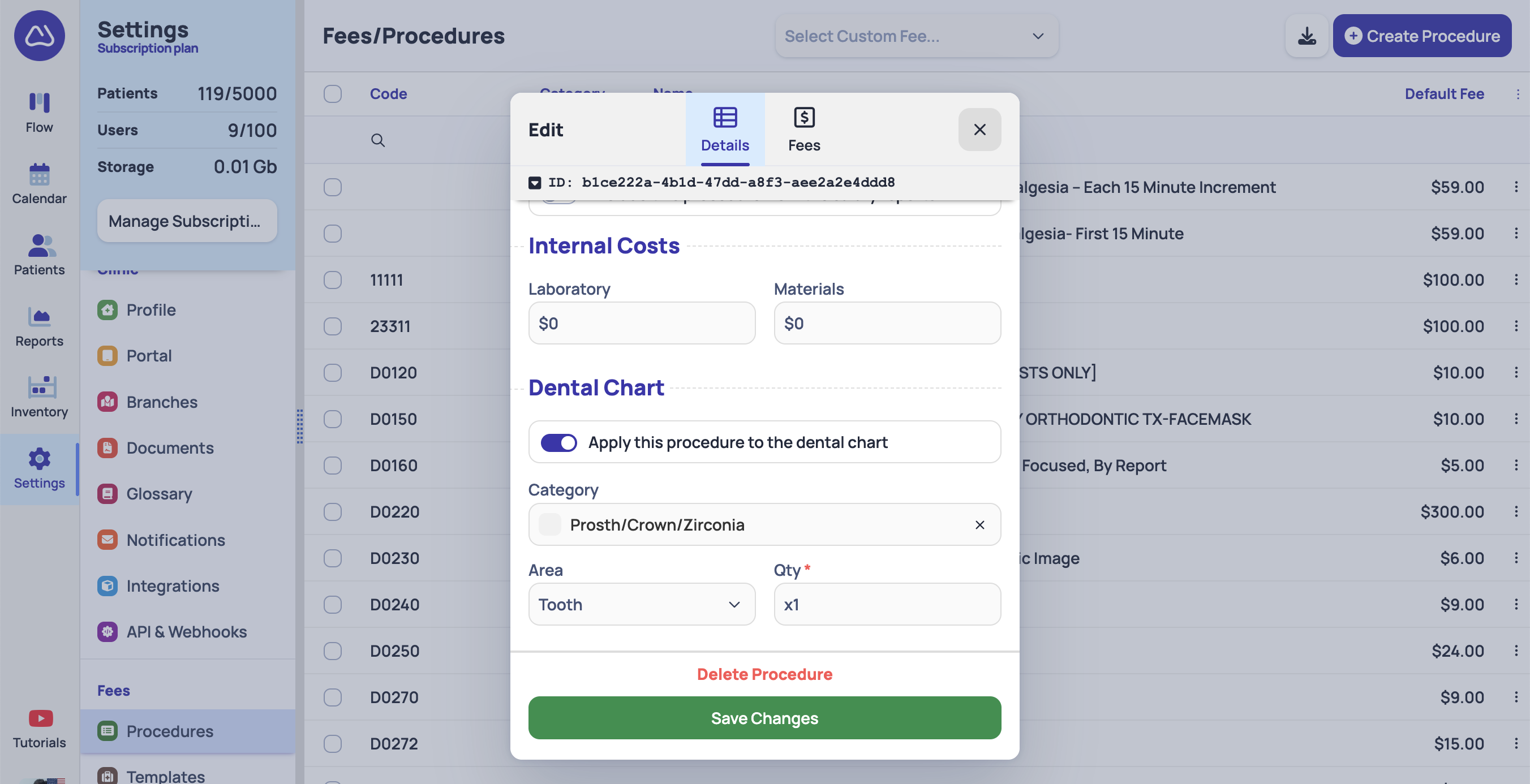
You can link your codes with the Dental Chart in [Settings -> Fees/Procedures](https://app.dentaltap.com/en/p/settings/fees/procedures).
When editing procedure, scroll down to the **Dental Chart** section. Here you can specify:
* **Category** – Determines which procedure will be selected when the dental chart icon is applied
* **Area** – Defines how the procedure is applied (tooth, quadrant, arch, or entire chart)
* **Quantity** – Specifies how many procedure units are created for the selected area
For example, in the screenshot above, this procedure will be added for each Zirconia Crown placed on the dental chart.
### Create Manually via Dental Chart
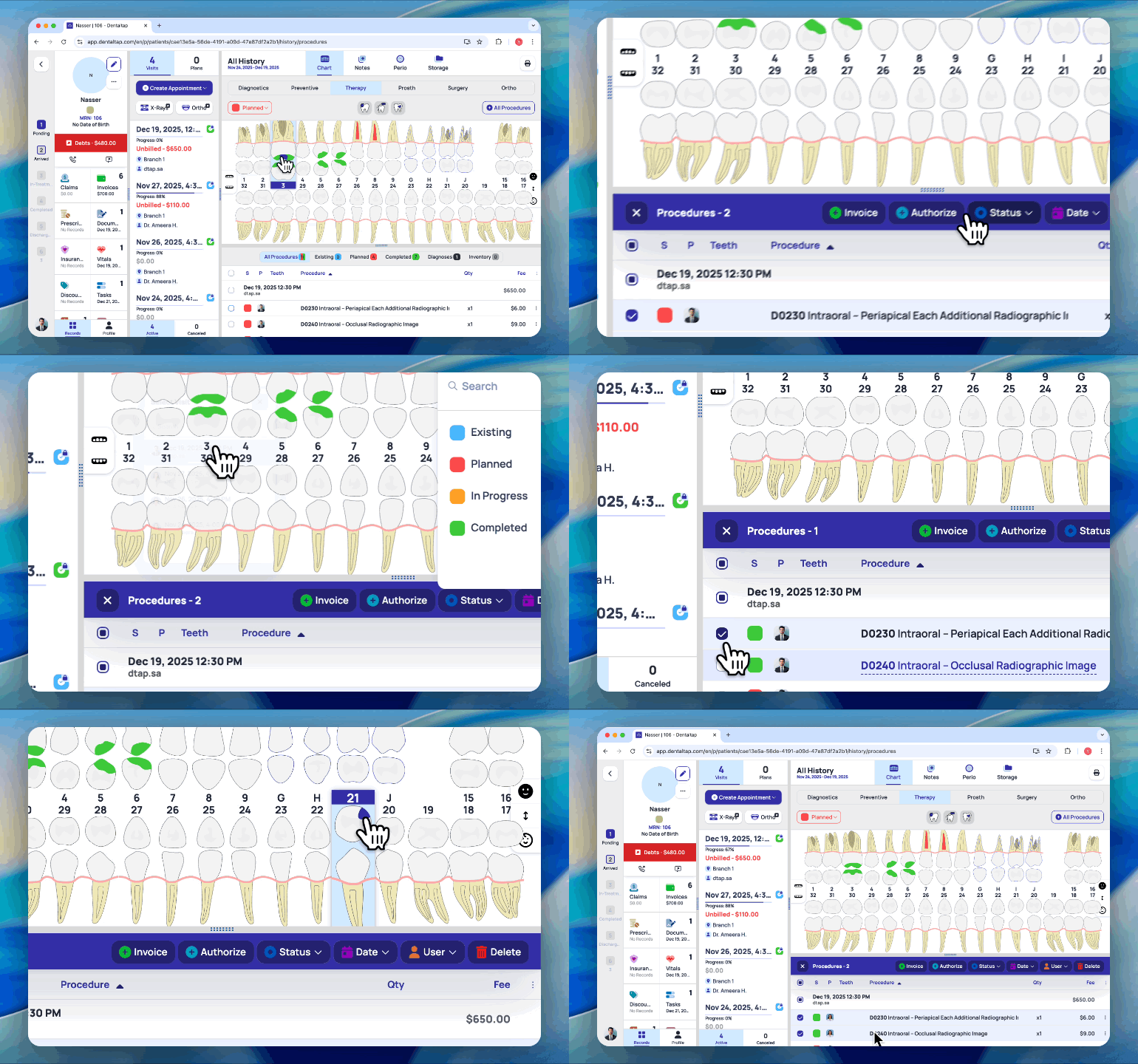
You can add procedures directly from the Dental Chart and link them to your codes/fees at the same time.
First, select the relevant tooth or teeth on the dental chart. Then apply a dental chart icon to record the condition. Once the icon is placed, an option appears at the bottom allowing you to select and link procedures to that chart entry.
### Procedure Notes / Teeth Selection
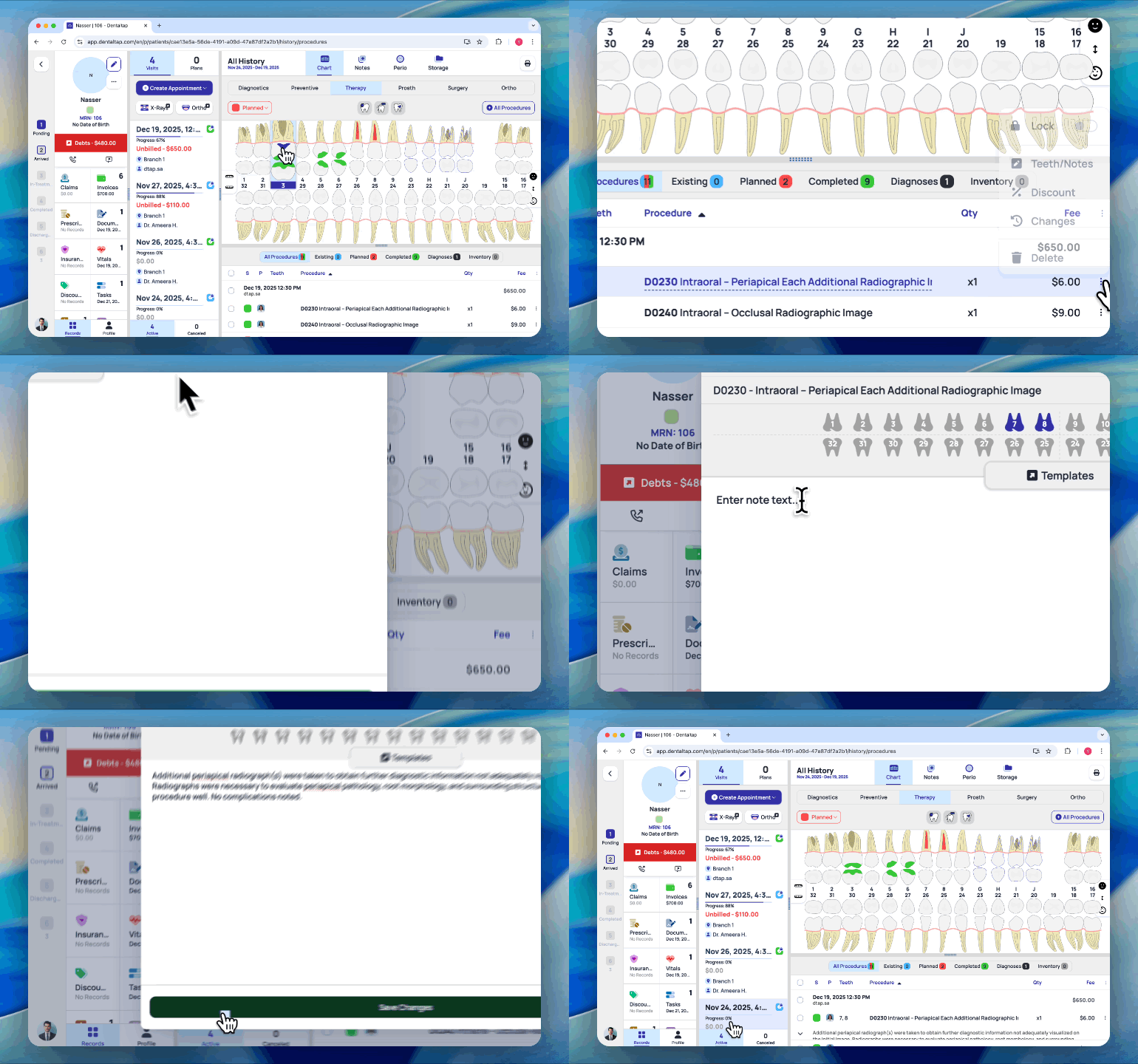
You can document progress and details for each individual procedure. These notes help track how treatment evolves over time and provide additional clinical context beyond the procedure itself.
To start adding notes, click the **⋮ (three-dots)** icon on the procedure to open the notes window.
From there, you can write progress notes for the procedure or apply a predefined template, then click on the **Save Changes** button to confirm.
### Manage Patients Procedures
Once patient procedures are added, you can continue working with them by **changing the date** or assigned user, **updating the status**, creating an invoice, submitting a claim, adjusting the fee, or deleting the procedure.
The Patient Procedures module enables accurate recording of planned and completed procedures, linking clinical work to billing, treatment planning, and financial workflows in a single, integrated view.