> For the complete documentation index, see [llms.txt](https://dentaltap.gitbook.io/dentaltap/llms.txt). Markdown versions of documentation pages are available by appending `.md` to page URLs; this page is available as [Markdown](https://dentaltap.gitbook.io/dentaltap/finances/invoices-and-payments.md).
# Invoices & Payments
Invoices can be generated automatically from completed procedures or created manually to include custom items, discounts, taxes, and other adjustments.
They are fully integrated with treatment plans, procedures, and insurance claims, ensuring accurate and efficient billing.
**Configuration**
1. Payment Groups:\
[Settings -> Glossary/Payments](https://app.dentaltap.com/en/p/settings/templates/dictionary?id=payments)
2. Notifications: \
[Settings -> Notifications](https://app.dentaltap.com/en/p/settings/clinic/notifications)
### Create Invoice
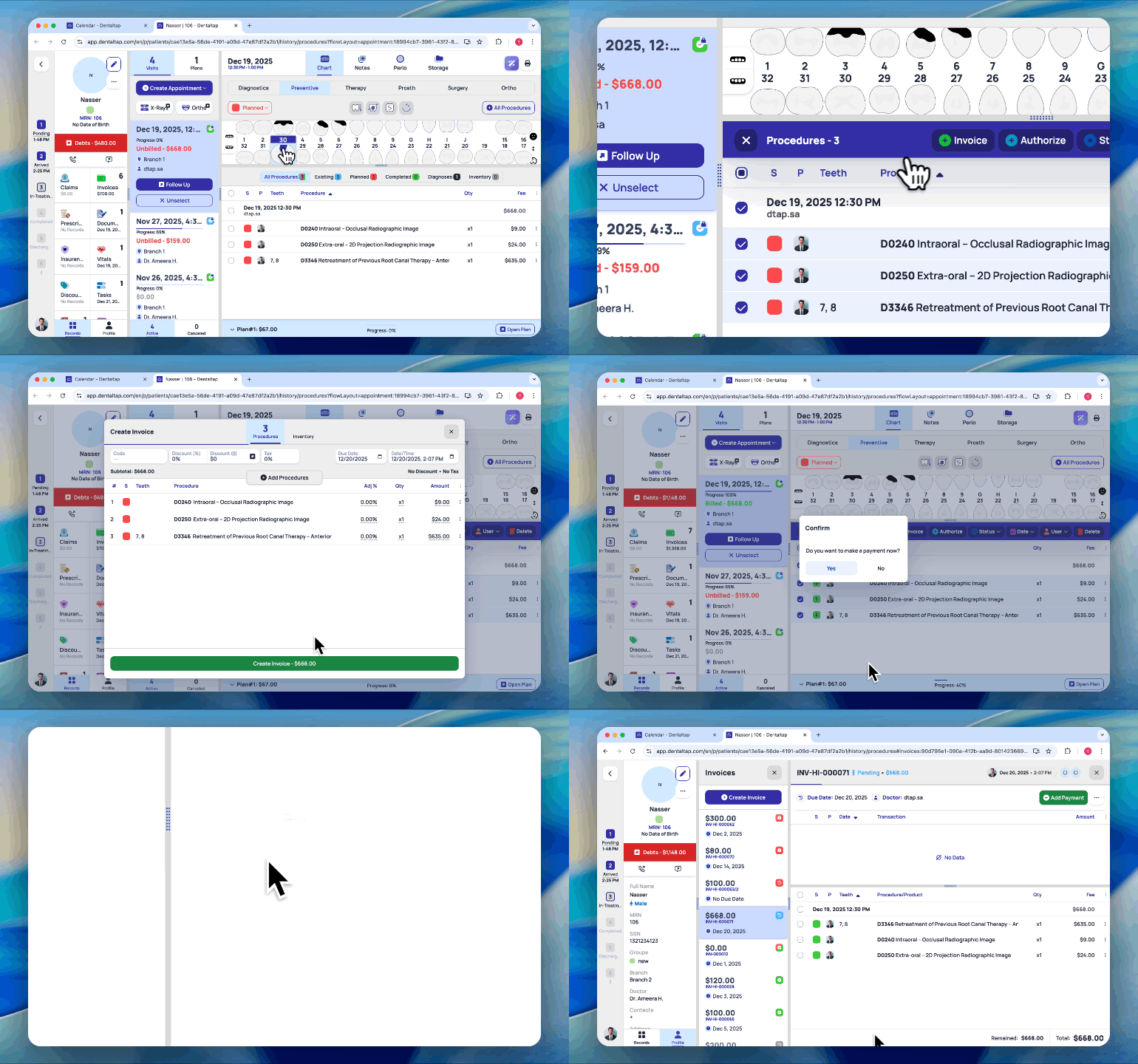
You can create a new invoice by selecting procedures from an appointment, or create an invoice without linking it to a specific appointment date.
Additionally, you can apply discounts, add inventory products, or include additional procedures as needed.
### Submit a Payment
Once an invoice is created, you can submit a payment to record the patient’s payment details.
1. **Enter Amount** – You can record a full or partial payment.
2. **Select Payment Method** – Choose from available options such as cash, bank card, or other methods.
3. **Add Notes** – Optionally add notes related to the payment.
4. **Assign to Group** – You can categorize or group payments for internal tracking or reporting purposes.
* The payment will be recorded against the invoice
* Partial payments reduce the outstanding balance
* Payment history is tracked and linked to the patient record
### Print Receipt
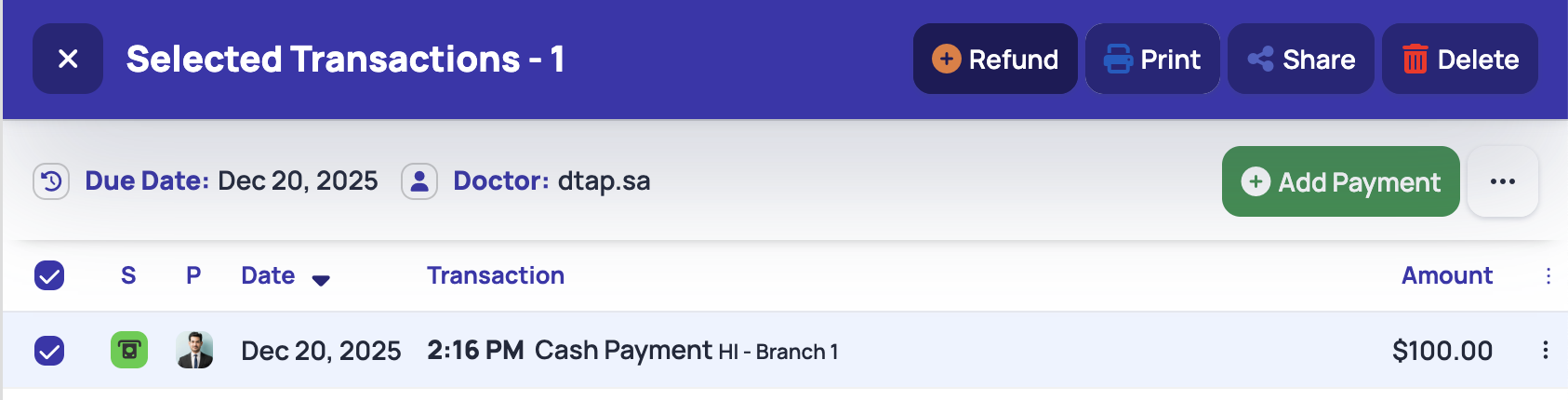
To print a receipt, select a Payment and click on the **Print** button at the top:
### Payment Cancellation and Refund
Dentaltap provides two separate options for handling payments: **cancellation** and **refund**.
* **Refund** – Issuing a refund returns the payment to the patient without increasing the invoice balance. Refunds are used when returning money to the patient for overpayment or other adjustments.
* **Delete/Cancel** – Cancelling a payment reverses the recorded transaction and increases the outstanding balance on the invoice. This should be used when a payment was recorded by mistake or needs to be fully reversed.
You can refund or cancel payment via the same selected transactions bar at the top:
The Invoices module streamlines patient billing by combining invoicing, payments, refunds, and installment plans into a single, integrated workflow.