> For the complete documentation index, see [llms.txt](https://dentaltap.gitbook.io/dentaltap/llms.txt). Markdown versions of documentation pages are available by appending `.md` to page URLs; this page is available as [Markdown](https://dentaltap.gitbook.io/dentaltap/getting-started/role-based-access-control.md).
# Role-Based Access Control
Dentaltap provides flexible access control to ensure that users only have access to the features and data relevant to their responsibilities.
By default, Dentaltap applies role-based access settings aligned with common clinic workflows and compliance requirements. Each role is configured with appropriate access to clinical and financial data.
### Access Control
Permissions can be configured for a wide range of areas, including:
* Calendar and scheduling
* Patient records
* Treatments and clinical data
* Reports
* Settings and configuration
* Subscription and billing
* Inventory management
### Setup Global Access Rules
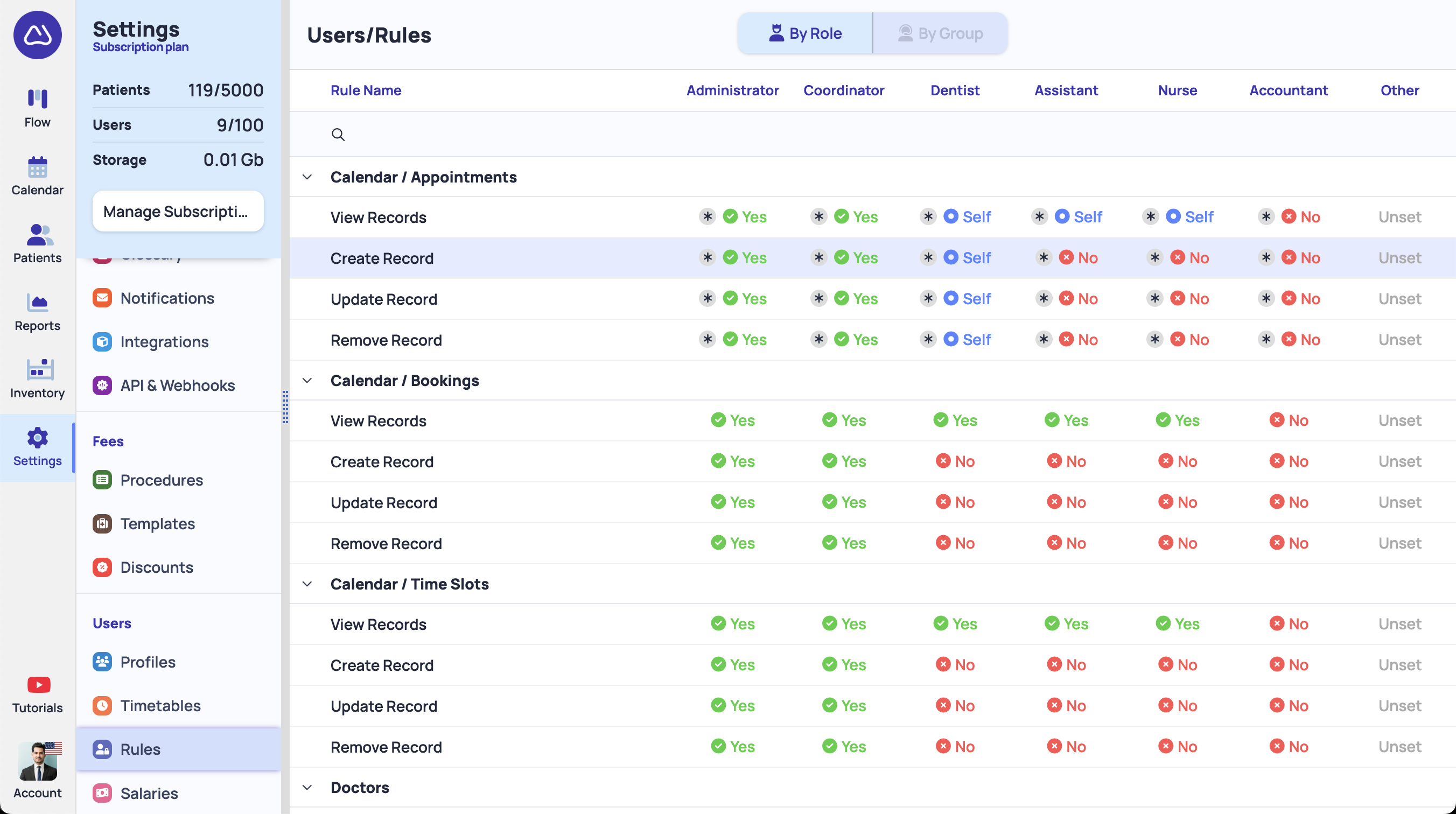
To adjust permissions at the role level, go to [Settings -> Users/Rules](https://app.dentaltap.com/en/p/settings/users/rules). On this page, you can search for a specific access rule (for example, **Reports**) and assign the appropriate value:
* **Yes** – Full access is allowed
* **No** – Access is not allowed
* **Self** – Access is limited to the user’s own records only
* **Branch** – Access is limited to the user’s assigned branch
Some permissions include **asterisk (\*) rules**, which support exceptions:
* **Yes + exceptions** – Access is allowed, except for specific fields or actions
* **No + exceptions** – Access is denied, except for specific fields or actions
This flexible system allows precise control over what each role or user can view or modify.
### Setup Custom User Access Rules & User Exceptions
Once you update global access rules, the system will ask whether you want to apply these changes to all user profiles. Confirming this will update all profiles with the new rules.
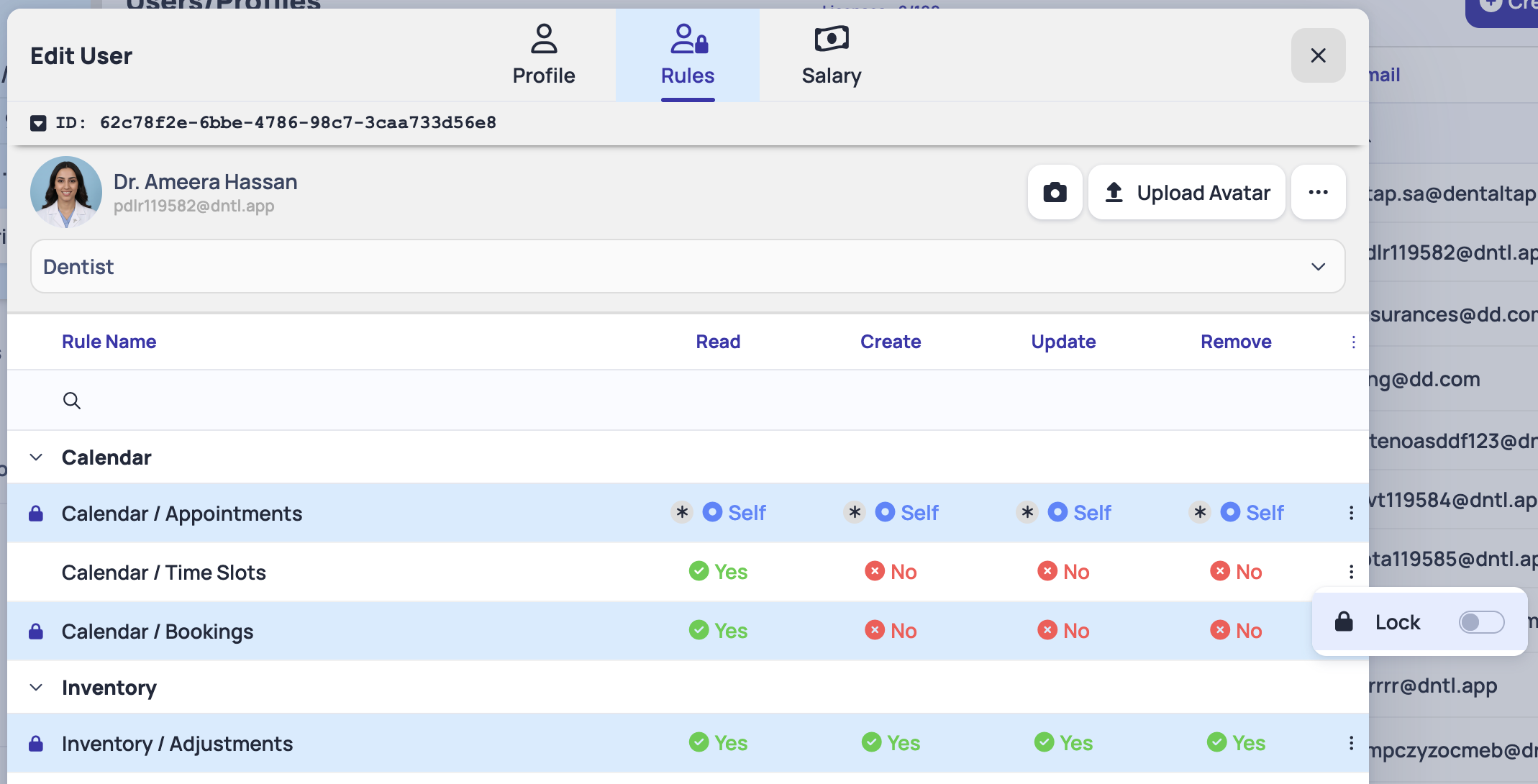
If you need an exception for a specific user, you can lock an individual rule at the user level. To do this, open the specific user profile from this page:
[Settings -> Users/Profiles](https://app.dentaltap.com/en/p/settings/users/profiles)
Go to **Role**, and enable the **Lock** option for the required rule. When a rule is locked, it will not be changed by future updates to the global rules table, ensuring the user-specific setting remains in place.